
Application Run Requirements
To ensure optimal performance and the best user experience with the Kapcharge platform, please adhere to the following system and software requirements
iOS for Apple devices - with the regional setting configured for the United States or Canada.
- Windows desktop computers and laptops.
- Apple desktop computers and laptops.
- iPad tablets 11 and 12.9 inch.
- Google Chrome.
- Microsoft Edge.
- Safari.
Performance may vary based on the device's specifications, operating system version, and browser version.
By meeting these requirements, you will enjoy the full range of features and a seamless experience while using Kapcharge.
Kapcharge application supports IPv4 only. IPv6 is not supported.
IPv6 Configuration Guide
Windows 10, Windows 11, macOS, confirmation steps, and troubleshooting notes
1. Windows 10
Disable IPv6
Use these steps to disable IPv6 on a Windows 10 Wi-Fi or Ethernet adapter.
- Open Settings.
- Select Network & Internet.
- On the Status page, select Change adapter options.
- Right-click the active network adapter, such as Wi-Fi or Ethernet, and select Properties.
- Uncheck Internet Protocol Version 6 (TCP/IPv6).
- Select OK and restart the computer if needed.
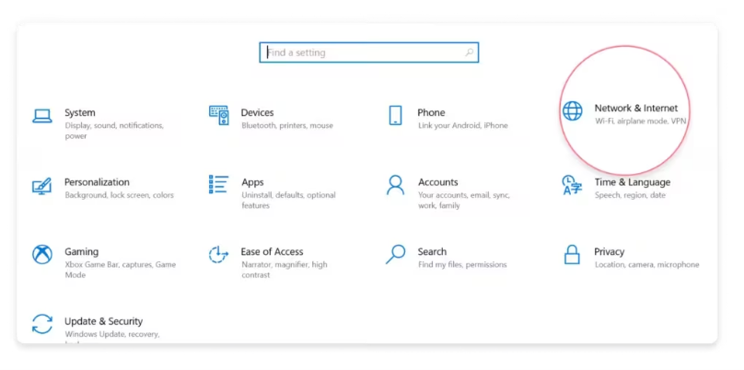
Figure 1: Windows 10 - Open Settings and select Network & Internet.
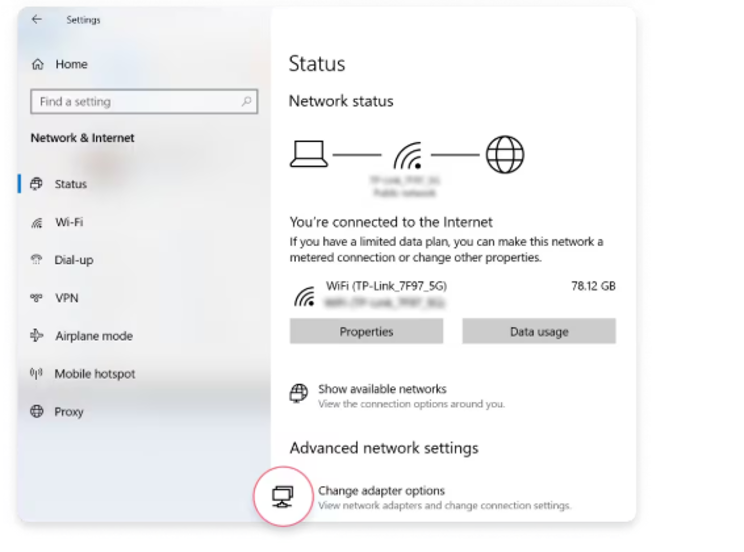
Figure 2: Windows 10 - Select Change adapter options from Status.
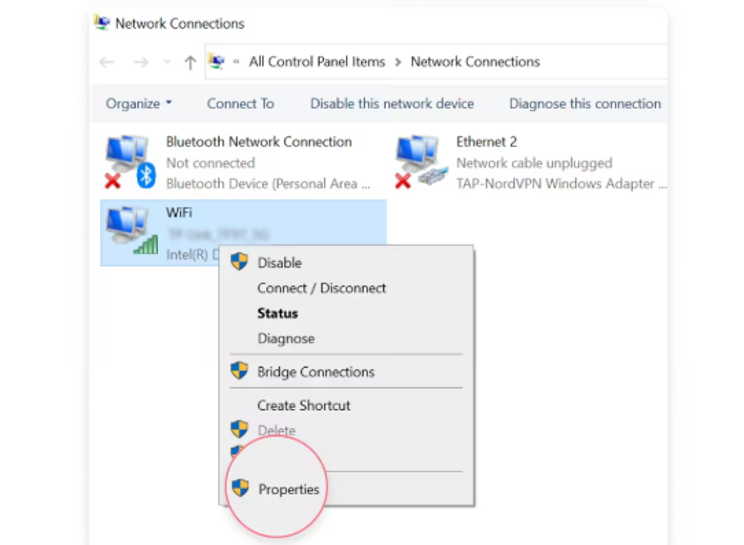
Figure 3: Windows 10 - Right-click the active adapter and select Properties.
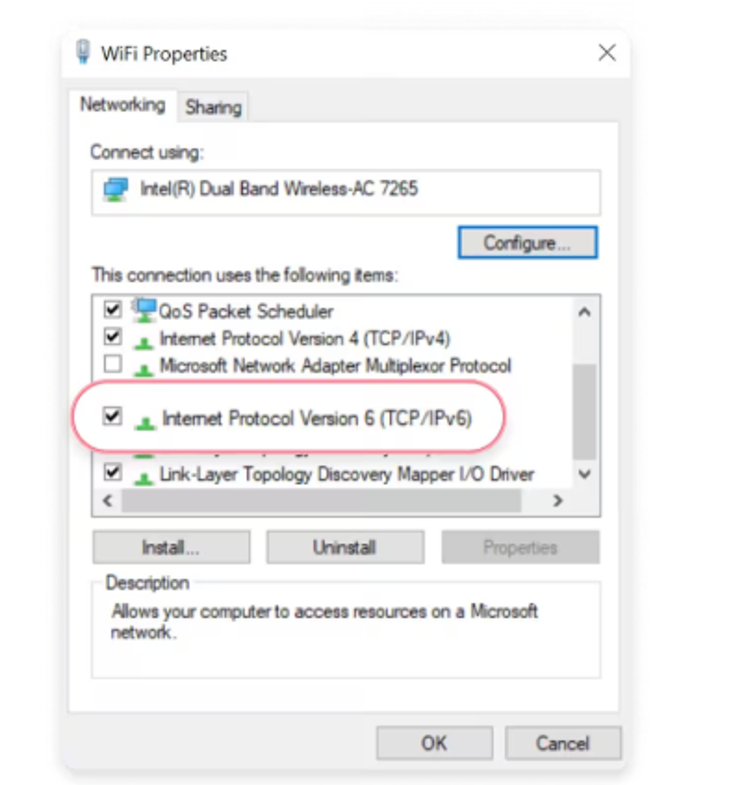
Figure 4: Windows 10 - Use the TCP/IPv6 checkbox to disable or enable IPv6.
Enable IPv6 again
To enable IPv6 again, return to the same adapter Properties window and check Internet Protocol Version 6 (TCP/IPv6). Select OK and restart the computer if required.
2. Windows 11
Disable IPv6
Use these steps to disable IPv6 on a Windows 11 Wi-Fi or Ethernet adapter.
- Open Settings.
- Select Network & Internet.
- Select Advanced network settings.
- Under Related settings, select More network adapter options.
- Right-click the active network adapter and select Properties.
- Uncheck Internet Protocol Version 6 (TCP/IPv6).
- Select OK and restart the computer if needed.
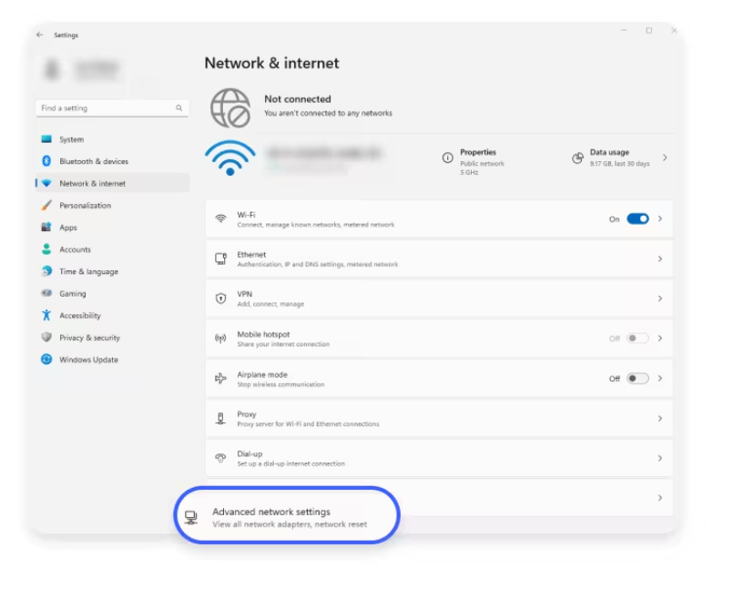
Figure 5: Windows 11 - Open Network & internet and select Advanced network settings.
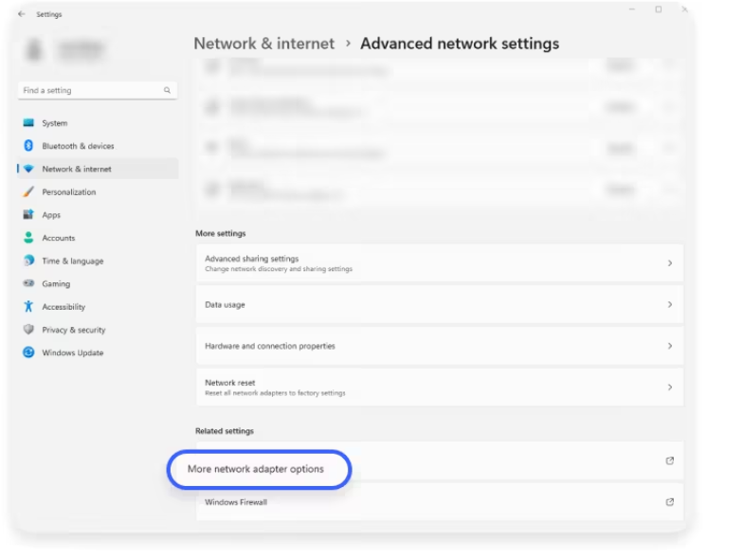
Figure 6: Windows 11 - Select More network adapter options.
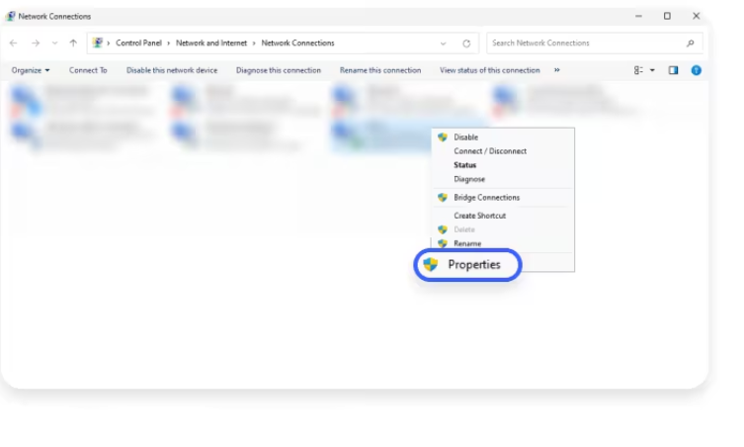
Figure 7: Windows 11 - Right-click the active adapter and select Properties.
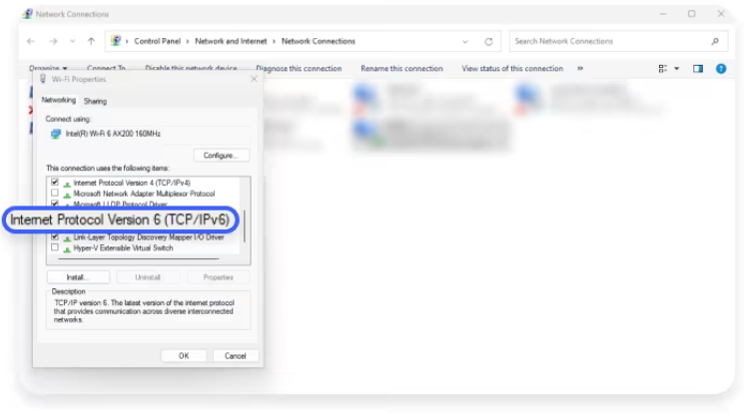
Figure 8: Windows 11 - Locate Internet Protocol Version 6 (TCP/IPv6).
Enable IPv6 again
To enable IPv6 again, repeat the same steps and check Internet Protocol Version 6 (TCP/IPv6). Select OK and restart if required.
3. macOS
Limit or Enable IPv6
On macOS, the common graphical setting is Configure IPv6. Selecting Link-local only limits IPv6 to local network communication. Selecting automatically enables normal IPv6 configuration again.
- Open System Settings.
- Select Network.
- Select Wi-Fi, then click Details beside the connected network.
- Open the TCP/IP tab.
- Besides Configure IPv6, select Link-local only to limit IPv6.
- To enable IPv6 again, select Automatically.
- Click OK and restart the Mac if required.
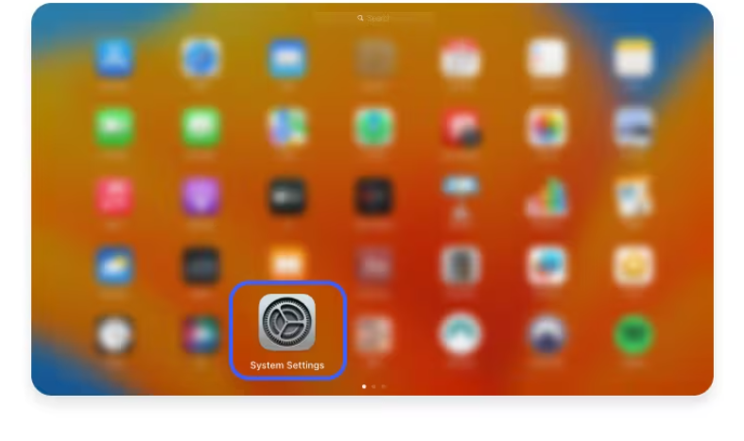
Figure 9: macOS - Open System Settings.
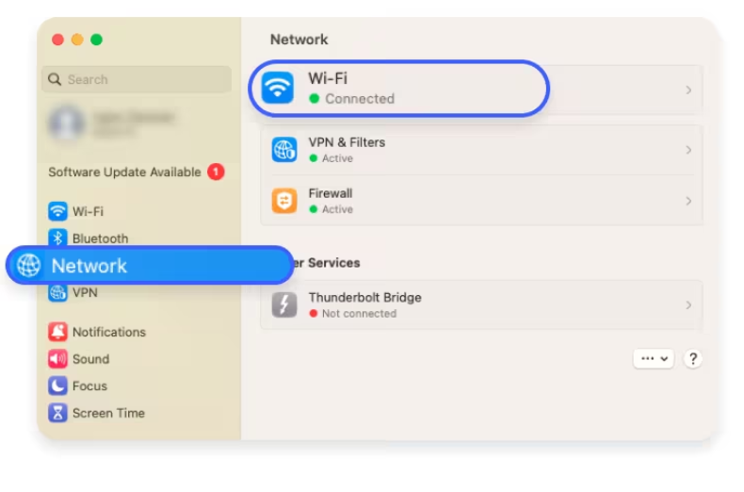
Figure 10: macOS - Open Network and select Wi-Fi.
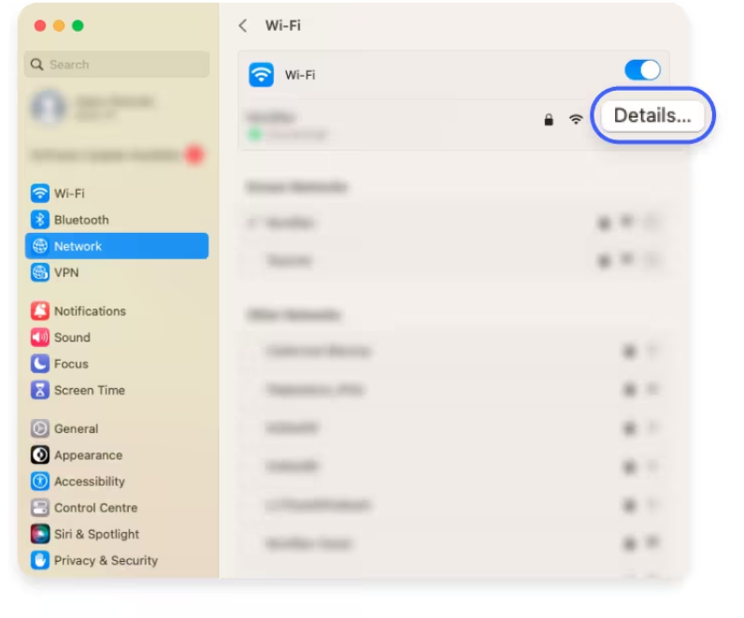
Figure 11: macOS - Click Details beside the connected Wi-Fi network.
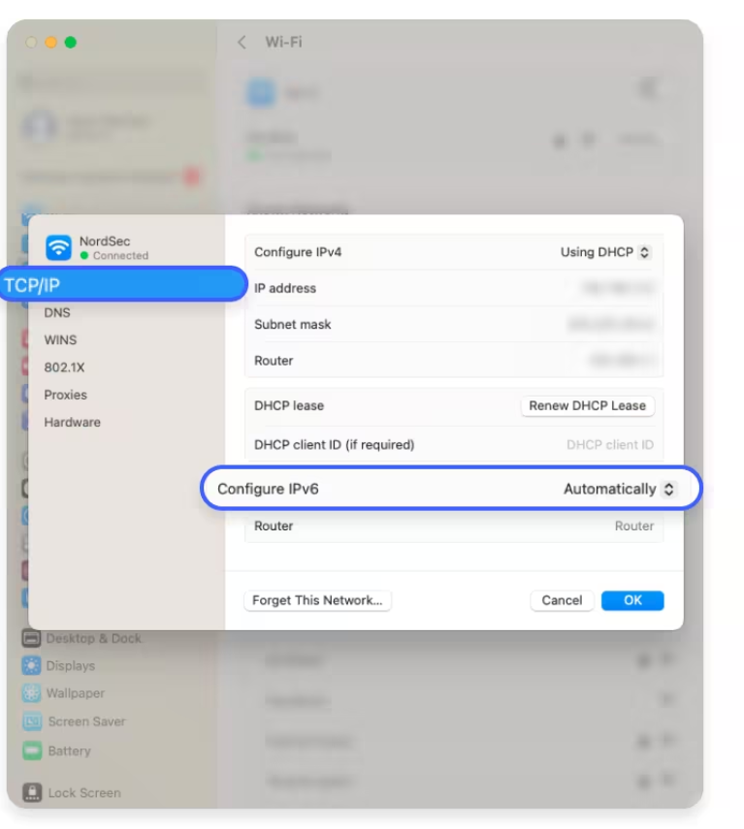
Figure 12: macOS - Open TCP/IP and check Configure IPv6.
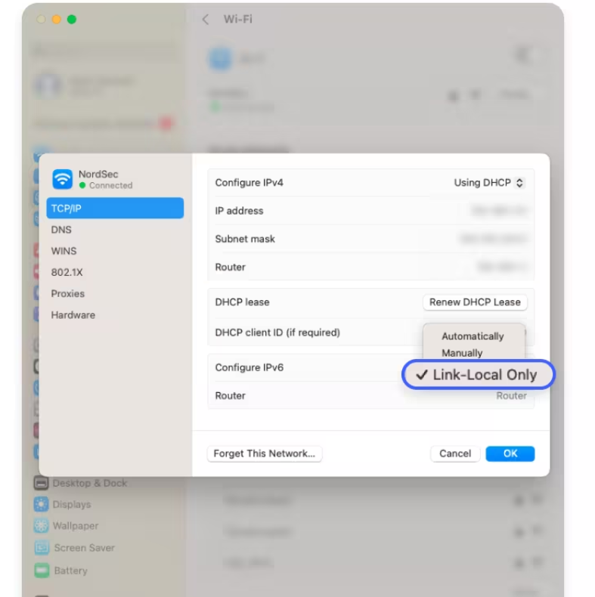
Figure 13: macOS - Select Link-local only to limit IPv6, or Automatically to enable it again.
4. How to Confirm IPv6 Status
Option A - Check the adapter settings
- Open the network adapter Properties window.
- Find Internet Protocol Version 6 (TCP/IPv6).
- If the box is checked, IPv6 is enabled on that adapter.
- If the box is unchecked, IPv6 is disabled on that adapter.
Option B - Use Command Prompt on Windows
Open Command Prompt and run:
ipconfig /all
Look under the active Wi-Fi or Ethernet adapter. If an IPv6 address appears, IPv6 is active or assigned on that network. If only IPv4 information appears, IPv6 may be disabled or unavailable on that connection.
You can also test IPv6 name resolution with:
ping -6 google.com
If the test fails, it may mean IPv6 is disabled, blocked, unsupported by the network, or not available through the current ISP or hotspot.
Option C - Use PowerShell on Windows
To see adapter binding status, open PowerShell as administrator and run:
Get-NetAdapterBinding -ComponentID ms_tcpip6
Enabled = True means IPv6 is enabled for that adapter. Enabled = False means IPv6 is disabled for that adapter.
5. Troubleshooting Notes
| Issue | Recommended action |
|---|---|
| IPv6 checkbox is greyed out | The user likely does not have local administrator permission. Contact IT or sign in with an administrator account. |
| Connected to a hotspot | The hotspot device or mobile carrier may control IPv6. Test again on the office Wi-Fi or Ethernet if possible. |
| Company VPN issue | Disable IPv6 only for temporary troubleshooting and document the result. Re-enable it after testing if it was not the cause. |
| Microsoft 365 or Outlook issues | Do not assume IPv6 is the root cause. Check DNS, VPN, Wi-Fi, proxy, firewall, and service status as well. |
| After changing IPv6 | Restart the computer and retest the original issue. |
Best practice for IT teams
For a business device, record the original IPv6 setting before changing it. If disabling IPv6 does not fix the issue, enable it again and continue normal network troubleshooting.